


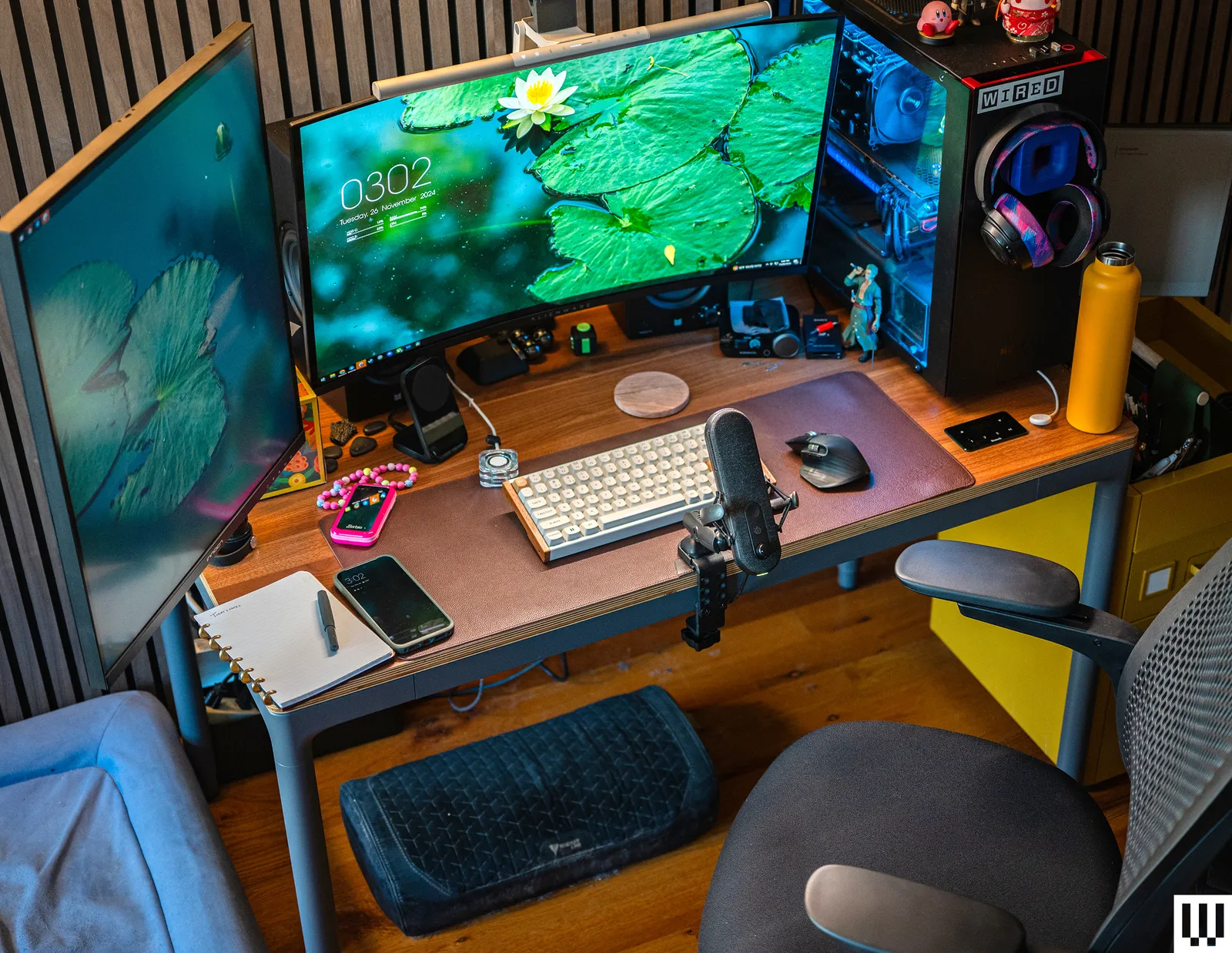
A productive home office does not require an expensive computer, designer desk, or complicated collection of gadgets. In many cases, a few carefully chosen upgrades can make an existing workspace more comfortable, organized, and reliable.
The key is to address genuine bottlenecks. If you constantly switch between windows, a second monitor could save more time than a faster processor. If video calls regularly freeze, a wired network adapter may be more useful than a new webcam. Meanwhile, people who spend several hours a day on a laptop may benefit most from improving screen height and mouse comfort.
The following affordable upgrades deliver practical improvements without turning your home office into an unnecessarily expensive technology project.
Quick Comparison: The Best Home Office Upgrades
| Upgrade | Recommended Product | Best For | Cost Tier |
|---|---|---|---|
| External monitor | ASUS VA24EHF | More screen space | $$ |
| Laptop stand | Nexstand K2 | Better screen positioning | $ |
| Ergonomic mouse | Logitech Lift | Long work sessions | $$ |
| 1080p webcam | Logitech Brio 500 | Video meetings | $$ |
| USB-C hub | Anker 555 8-in-1 | Port expansion | $$ |
| Ethernet adapter | TP-Link UE300C | Stable internet connections | $ |
| Battery backup | APC Back-UPS BE850G2 | Power protection | $$ |
1. Add a Second Monitor: ASUS VA24EHF
For most office workers, a second display provides one of the biggest productivity improvements available. You can keep a document open on one screen while researching on another, compare spreadsheets without constant window switching, or view meeting participants alongside your notes.
The ASUS VA24EHF is a practical example of an affordable office monitor. It has a 23.8-inch IPS panel, Full HD resolution, a 100Hz refresh rate, Adaptive-Sync, HDMI connectivity, and a VESA-compatible mounting pattern.
A 24-inch Full HD monitor is usually sufficient for email, browser-based work, writing, accounting, and general administration. The 100Hz refresh rate also makes scrolling and pointer movement appear smoother than on a traditional 60Hz display.
Choose it if: You regularly work with multiple documents, applications, or browser tabs.
2. Raise Your Laptop: Nexstand K2
A laptop placed flat on a desk forces many users to look downward for hours. An adjustable stand can raise the display to a more comfortable viewing position while freeing some space underneath the computer.
The Nexstand K2 offers eight height settings, folds for travel, and supports laptops from 10 to 17 inches, subject to the manufacturer’s fit requirements. Its open design also leaves room for airflow around the laptop.
Remember that raising a laptop also raises its keyboard. For an effective desktop setup, combine the stand with a separate keyboard and mouse. Attempting to type on a highly elevated laptop can create a different set of comfort problems.
Choose it if: Your laptop is your primary computer and you frequently find yourself leaning toward the screen.
3. Replace Your Basic Mouse: Logitech Lift
A mouse is one of the most frequently handled items in a home office, yet it is often treated as an afterthought. A better shape, smoother tracking, and quieter buttons can make everyday work noticeably more pleasant.
The Logitech Lift Vertical Ergonomic Mouse uses a 57-degree design intended to place the hand in a more natural handshake-style position. It is designed primarily for small to medium-sized hands and is available in right- and left-handed versions.
A vertical mouse can require several days of adjustment, particularly if you have used a traditional mouse for many years. It should also be viewed as a comfort-focused accessory rather than a treatment for an existing injury. Persistent hand, wrist, or arm pain should be discussed with a qualified health professional.
Choose it if: You spend much of the day navigating documents, spreadsheets, design applications, or websites.
4. Improve Video Calls: Logitech Brio 500
Built-in laptop cameras are convenient, but their position and image quality are not always ideal. A dedicated webcam allows you to place the camera closer to eye level while improving how you appear during client calls, interviews, and team meetings.
The Logitech Brio 500 provides Full HD 1080p video, automatic light correction, noise-reducing microphones, auto-framing, and a built-in privacy shutter. Its Show Mode can also help users present physical documents or objects on the desk.
Do not judge a webcam by resolution alone. Soft light positioned in front of you can improve video quality more dramatically than moving from one resolution label to another. Place the camera near eye level and avoid sitting directly in front of a bright window.
Choose it if: Video meetings are a regular and important part of your work.
5. Add More Ports: Anker 555 USB-C Hub
Modern laptops are thinner than ever, but that often means fewer ports. A well-equipped USB-C hub can connect a monitor, network cable, memory cards, storage devices, keyboard, and mouse through one laptop connection.
The Anker 555 USB-C Hub offers eight ports, including HDMI, Gigabit Ethernet, SD and microSD card readers, USB-A, and USB-C data connections. It supports a 4K display at 60Hz and up to 100W pass-through charging, although the hub reserves some power for its own operation and does not include a charger.
Check your laptop’s USB-C specifications before buying any hub. Not every USB-C port supports video output or charging, and supported display resolutions can vary by computer and operating system.
Choose it if: You repeatedly connect and disconnect several accessories from a limited number of ports.
6. Stabilize Your Connection: TP-Link UE300C
Wi-Fi is convenient, but interference, distance, thick walls, and network congestion can affect video calls and large file transfers. When your router is within cable reach, a wired Ethernet connection can provide greater consistency.
The compact TP-Link UE300C converts a USB-C port into a Gigabit Ethernet connection. TP-Link advertises speeds of up to 1,000Mbps, although real performance still depends on your internet plan, router, network cable, and computer.
An Ethernet adapter cannot make an inadequate internet plan faster. What it can do is remove Wi-Fi variability between your computer and router, which may reduce interruptions during important meetings.
Choose it if: Calls freeze or disconnect even though your internet service is otherwise adequate.
7. Protect Your Work: APC Back-UPS BE850G2
A battery backup is not the most exciting home office purchase, but it can be one of the most valuable. A brief outage can end a meeting, interrupt an upload, corrupt unsaved work, or shut down networking equipment.
The APC Back-UPS BE850G2 is rated at 850VA and up to 450 watts. It provides nine outlets, USB charging ports, audible status alerts, and a replaceable battery.
Connect essential equipment such as your computer, monitor, modem, and router while staying within the UPS wattage rating. High-power appliances, laser printers, heaters, and similar devices generally should not be connected to battery-backed outlets unless the manufacturer specifically permits it.
Choose it if: Your area experiences outages, voltage fluctuations, or unreliable electrical service.
Which Upgrade Should You Buy First?
Start with the problem that wastes the most time or creates the most discomfort. A second monitor is usually the strongest productivity upgrade for multitasking. Laptop users should prioritize a stand, keyboard, and mouse as a complete desktop arrangement. Frequent meeting participants may get better value from a webcam or Ethernet adapter.
If your setup already works well, protect it with a battery backup. There is little benefit in purchasing every accessory simultaneously; build the workspace gradually and evaluate whether each addition genuinely improves your working day.
Frequently Asked Questions
How much should I spend on a home office upgrade?
There is no universal budget. Begin with one upgrade that addresses a recurring problem. Low-cost accessories such as a laptop stand or Ethernet adapter can make a meaningful difference, while a monitor or battery backup may justify a larger investment.
Is a second monitor really worth it?
It is particularly useful for research, writing, coding, financial work, customer support, and any task requiring information from multiple applications. People who perform most of their work in one focused application may benefit less.
Do I need a docking station instead of a USB-C hub?
A hub is usually sufficient for basic peripherals, one display, and occasional travel. A powered docking station is more suitable for permanent setups involving several monitors, numerous high-speed devices, or higher charging requirements.
Will Ethernet always be faster than Wi-Fi?
Not necessarily. Actual speed depends on the entire network. However, Ethernet commonly provides a more consistent connection because it is less affected by wireless interference and distance.
Final Verdict
The best home office upgrades are not necessarily the most expensive or technically impressive. They are the ones that remove friction from your daily routine. For most people, an external monitor delivers the largest productivity gain, while a laptop stand and ergonomic mouse improve the physical experience of working for long periods.
Prioritize reliability as well as comfort. A simple Ethernet adapter and battery backup may never attract attention on your desk, but they can prevent the interruptions that cost the most time when deadlines and meetings matter.